
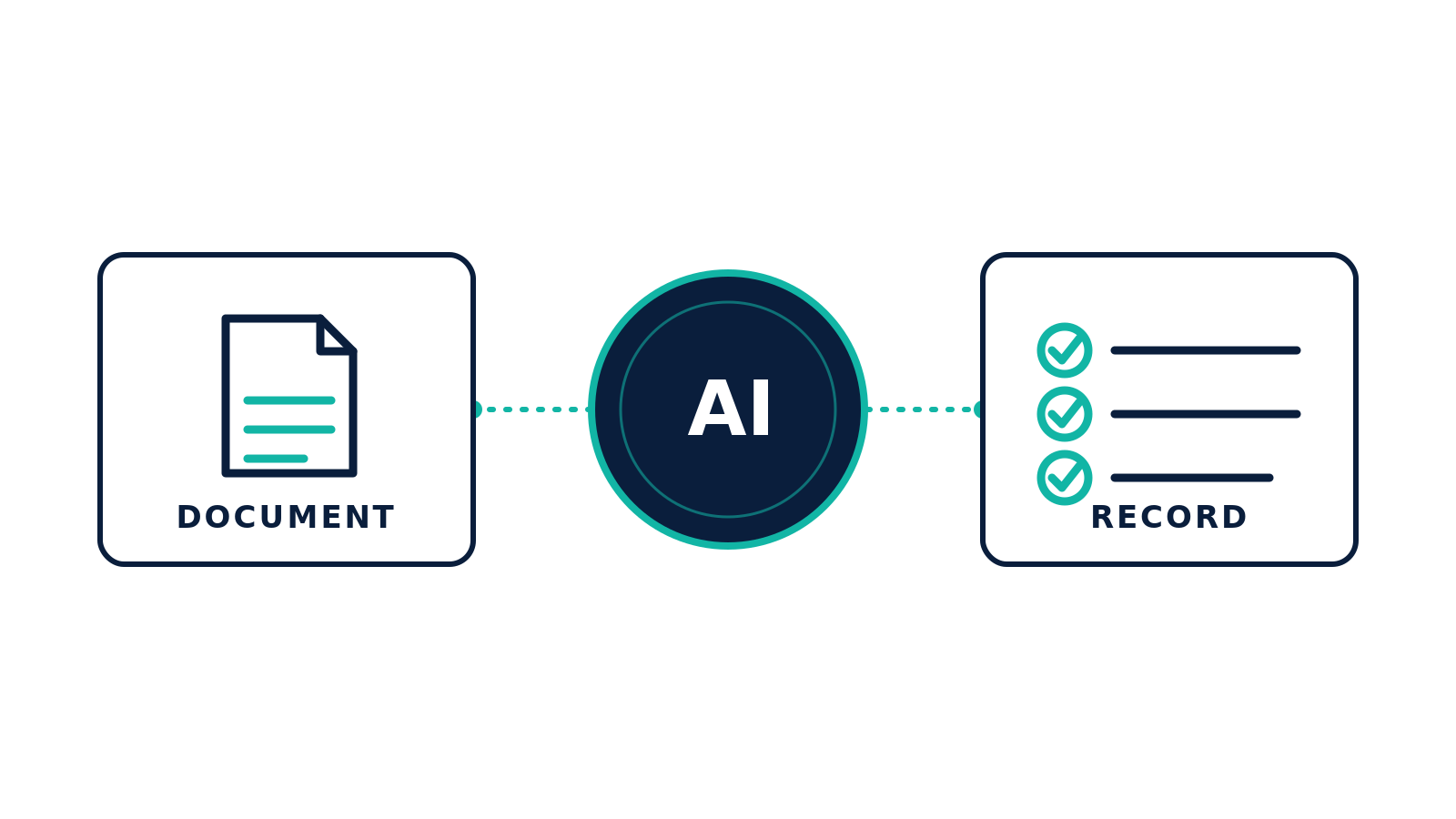
Every growing business has a version of the same pile. Supplier invoices arrive as PDF attachments.
Signed forms come back as phone photos. Contracts sit in a shared drive as scans.
Someone on the team opens each file, reads it, and retypes the important parts into accounting software, a spreadsheet or a CRM. The work is not difficult.
It is repetitive, easy to get wrong when rushed, and hard to keep up with at month end, which is why AI document processing for small business matters. There is a practical fix for that pile. Software reads each document, works out what type it is, extracts the fields you actually need, checks them against simple rules, and prepares a clean record for a person to approve.
Your team stops retyping and starts reviewing, which is normally faster than entering each record from scratch, and easier to check. This guide explains how that workflow runs, which documents to start with, where the technology still struggles, and how to begin with one document type instead of a big project.
What AI document processing for small business actually does
The category name in the industry is intelligent document processing, often shortened to IDP. The idea is simpler than the name.
A document arrives as a file. The system turns it into structured data: named fields with values, such as supplier, invoice number, due date and total, that your other software can use.
Plain OCR is only the first part of that job. OCR converts a picture of text into characters.
It does not know which number on the page is the invoice total and which is the phone number. Document processing adds the understanding on top: it classifies the document, finds the fields by meaning and layout, and validates what it found.
Industry explainers describe the same pipeline of ingestion, classification, extraction and validation, with a person verifying results the system is unsure about (Databricks’ overview of intelligent document processing walks through each stage). Three consequences follow from that design. First, the output is only as useful as the fields you define, so choosing fields is a business decision, not a technical detail.
Second, many systems report a confidence score for each extracted field, where supported. Treat that score as an estimate of how likely the value is to be right, not as proof of accuracy.
Used that way, it makes a sensible review step possible, because low scoring fields can be sent to a person first. . Third, nothing has to be fully automatic. A workflow where the software prepares records and a person approves them is a complete and legitimate design.
The workflow, step by step
Document processing works best when it is treated as one workflow with clear stages, rather than a single clever tool. Here is the shape that suits most small and medium businesses.
Capture. Documents enter through channels you already have: an inbox, a shared folder, a scanner, or uploads from customers and suppliers. The workflow starts when a file arrives, not when someone remembers to process it.
Classify. The system identifies the document type. An invoice goes down a different path from a signed form or a delivery note, because each one needs different fields.
Extract. The fields for that document type are pulled out: names, numbers, dates, line items, totals. This is the step people mean when they talk about AI reading documents.
Validate. Simple rules check the extraction before anyone sees it. Do the line items add up to the total? Is the date in a valid format? Is this invoice number already in the system, which would suggest a duplicate?
Review. Anything the system is unsure about goes to a person, shown next to the original document so the two can be compared side by side. Confident, valid records can move ahead, but for financial and legal documents most businesses keep approval with a person regardless.
Save and route. Approved data lands where it belongs: the accounting package, the CRM, a spreadsheet, or a case file. Well organised extracted data can later feed other tools too, for example building an internal AI knowledge assistant that answers staff questions from your own documents.
One stage matters as much as the six above: the exception path. A document that cannot be classified, or a field that fails validation, should land in a named person’s queue with the original file attached. Workflows fail in practice when exceptions have no owner, not when the AI meets a document it cannot read.
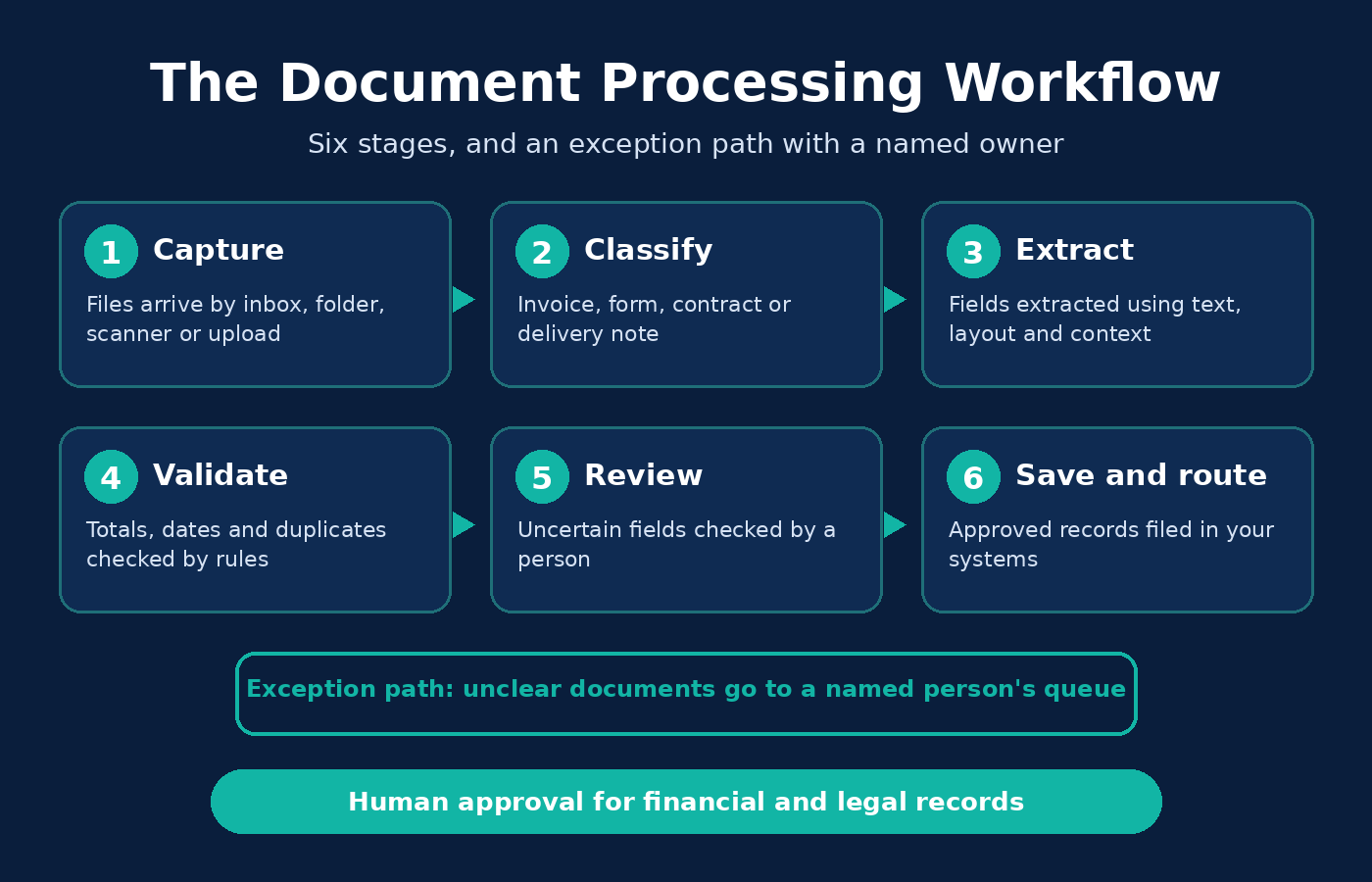
The six stages every document passes through, with exceptions routed to a named owner.
The documents worth starting with
Start where the same fields repeat on documents you receive every week. Four types cover most small business paperwork.
Invoices and receipts. The clearest starting point for most businesses. The fields are consistent (supplier, invoice number, dates, line items, tax, total), the volume is steady, and the record has an obvious home in your accounting software.
Forms and applications. Customer intake forms, order forms, registration forms and applications all ask for the same kinds of information. Extraction turns a pile of completed forms into rows you can search, sort and act on.
Contracts and signed agreements. The useful fields here are usually the parties, the start and end dates, renewal terms, notice periods and the value.
Extraction does not review the contract for you. Once the extracted fields have passed your review step, it can build a register of what you have signed and when each agreement needs attention.
Delivery notes and purchase orders. These matter most when matched against invoices. Extracting all three lets the workflow flag a mismatch, such as an invoice for goods the delivery note does not show, before payment rather than after.
If your team handles a document type that is not on this list, the same test applies: does it arrive often, does it always carry roughly the same fields, and does someone currently retype those fields into another system? If yes, it is a candidate.
A worked example: one supplier invoice
To make the workflow concrete, here is an illustrative example. The business is invented and the figures are examples, but every step is one a real setup would follow.
A catering supplier sends an invoice as a PDF attached to an email. The workflow picks it up from the invoices inbox (capture) and identifies it as an invoice rather than a statement or a price list (classify).
It extracts the supplier name, invoice number, invoice date, due date, four line items, the tax amount and the total (extract). Validation then does quiet, useful work. The four line items are added up and compared with the stated total.
The due date is checked against the invoice date. The invoice number is checked against the accounting system to make sure the same invoice has not been entered before, which happens easily when a supplier emails a copy twice. In this example the total on the page and the sum of the line items differ slightly, so the record is routed to the office manager with the invoice shown beside the extracted fields (review).
She sees the problem in seconds: one line item was misread because the scan is faint. She corrects it, approves the record, and it is created in the accounting software with the original PDF attached (save and route). The only manual typing in the whole sequence was fixing one number.
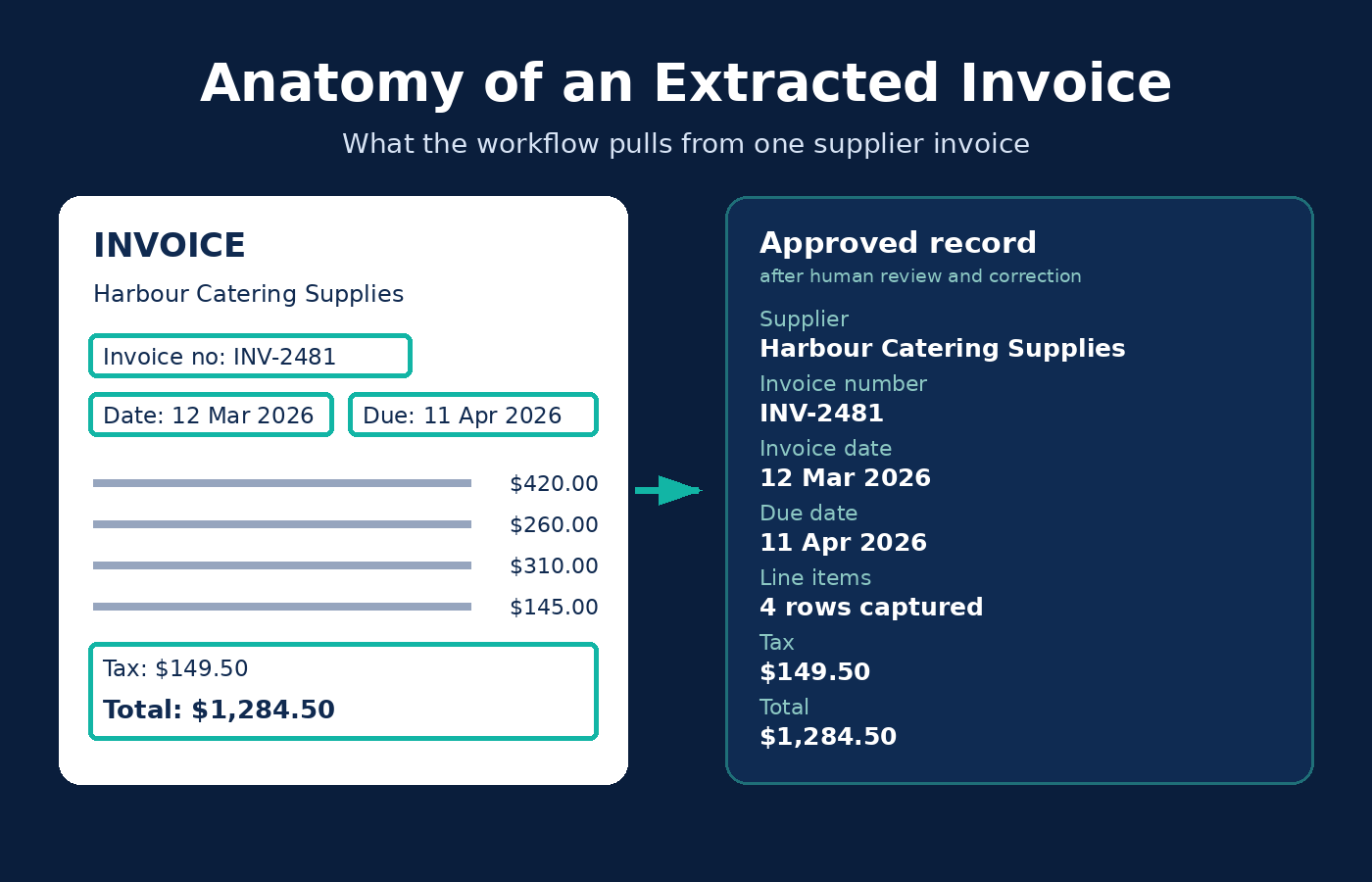
The same invoice before extraction, and the approved record after human review and correction. The supplier details and figures are illustrative.
Where it struggles, and how the workflow absorbs that
Honest limits matter more than headline claims, because you will meet all of these in the first month. Handwriting is the weakest input. Printed and typed documents extract well.
Handwritten forms, especially quick handwriting on paper forms, produce far more uncertain fields. If your intake is mostly handwritten, expect a heavier review step, or move the form itself online so the data starts digital.
Poor scans cause poor results. Skewed pages, shadows across phone photos, faint print and stamps over numbers all reduce accuracy.
Most of this is fixable at the source: ask suppliers and customers for the original PDF where one exists, and give staff a simple scanning routine for paper. Unusual layouts need examples. A supplier whose invoices put the total in an unexpected place, or a form your business designed years ago, may extract badly at first.
A correction on its own does not teach the system anything. Improvement only happens when corrected documents are fed back through a configured process, such as updated validation rules, new labelled examples added to a training set, or a retrained model, and only where the tool supports it.
That feedback loop is another reason the review step is not wasted effort: it is where the corrected examples come from. Similar fields get confused. Invoice numbers and order numbers sit near each other and look alike.
Account numbers and reference numbers do too. Validation rules and a quick human check on high value documents are how you keep a confident sounding error out of your accounts.
Sensitive documents need deliberate access control. Contracts, identity documents, HR files and customer records should only be processed where permissions, retention and storage have been thought through.
Decide who can see the documents and the extracted data, how long files are kept, and where processing happens, before the workflow goes live. This is a design question, not a reason to avoid the technology.
How to start without a big project
You do not need to process every document your business touches. You need one workflow that works, measured honestly, before you add a second.
- Pick one document type. Choose the one your team retypes most often. Supplier invoices are the usual winner.
- Collect real samples. Gather a few weeks of actual documents, including the messy ones. Testing on tidy samples proves nothing.
- Define the fields. Write down exactly which fields the record needs, and what format each must be in. This list is the contract the whole workflow is judged against.
- Set the review rules. Decide which failures always go to a person, which values need a second look (amounts above a limit, for example), and who owns the exception queue.
- Run it alongside the current process first. For a short period, let the workflow prepare records while your team still checks everything.
- Compare its output against what your team produced. That comparison is your real accuracy figure, measured on your documents rather than quoted from a brochure.
- Measure time and corrections. Track how long processing takes per document and how many fields get corrected. If corrections stay high, the document type or the samples need work before you expand.
This measured start is the same pattern we recommend for automation generally in our guide to AI automation workflows for small businesses: begin with one supervised workflow, prove it, then widen it.
Buy a tool, use what you have, or build the workflow
There are three realistic routes, and the right one depends on your document mix. Many accounting and invoicing products already include receipt and invoice capture. If your paperwork is mostly standard invoices going into one accounting package, start there. It may cover your needs without a new system at all.
Standalone document processing tools suit businesses with several document types and a steady volume. They offer ready made extraction for common documents and review screens for exceptions.
Check how they export data, because the output still has to reach the systems your team works in. A custom workflow is worth considering when your documents vary a lot, when the data must move between several systems, or when the review and exception handling needs to match how your team already works.
That is the point where document processing stops being a feature inside someone else’s product and becomes part of your own operations, which is the kind of build covered by DevxerTech’s AI workflow and automation services. Whichever route you choose, judge it on the same criteria: accuracy on your documents, the quality of the review experience, where the data can go next, and what happens when a document does not fit.
Frequently asked questions
Is AI document processing the same as OCR?
No. OCR converts an image of a page into text.
Document processing uses that text, plus layout and meaning, to classify the document and extract named fields, then validates the result and routes it into your systems. OCR is one component inside the wider workflow.
How accurate is it?
It depends on the documents. Clean, consistent, printed documents extract far more reliably than faint scans, unusual layouts or handwriting.
Any percentage quoted without your documents in front of it is marketing. Test on your own samples, measure the correction rate field by field, and keep the review step for anything uncertain or high value.
What does it cost?
Mainly three things: the tool or platform cost, which is often tied to document volume; the setup work of defining fields, rules and connections to your systems; and the review time your team still spends on exceptions. There is no honest single figure without knowing your document types and volume, which is why a small measured pilot is the sensible way to price it.
Is it safe to process contracts and customer documents this way?
It can be, provided the access design is deliberate. Use tooling that lets you control who can view documents and extracted data, set retention limits, and know where files are processed and stored. Ask any provider those questions directly and get the answers in writing before you send sensitive documents through a workflow.
Start with the document your team retypes most
The pile on your team’s desk is not a technology problem first. It is a workflow problem with a well understood shape: capture the document, extract the fields, validate them, let a person check what matters, and file a clean record.
AI document processing for small business can shorten the extraction and checking stages, although the size of the gain depends on document quality, the tool and how the workflow is set up. The discipline of the workflow is what makes the result trustworthy.
Pick the document type your team retypes most often, define its fields, and run one careful pilot. If you would like help scoping that first workflow, or connecting document processing to the systems your business already runs, talk to DevxerTech about your document workflow and bring a sample document. The fields on that page are the best place to start the conversation.

